
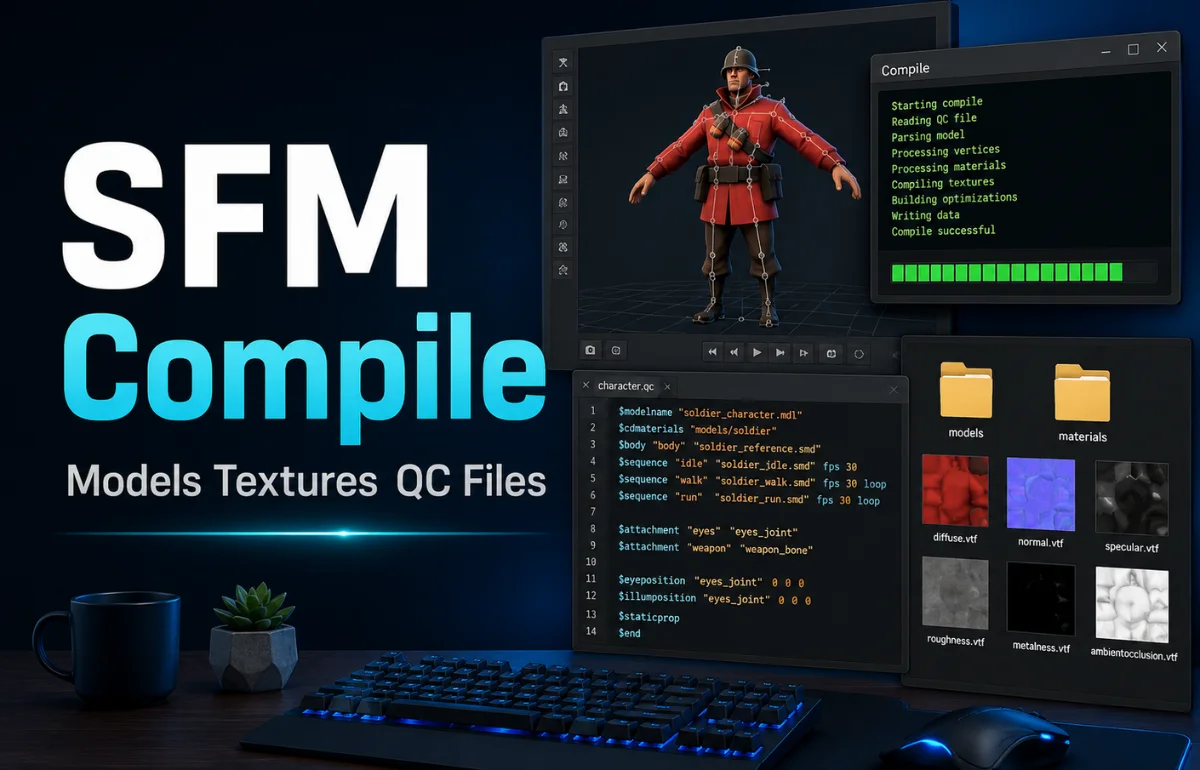
SFM Compile is the process of turning editable model files, textures, animations, and instructions into Source Filmmaker-ready assets that the Source Engine can actually load. In simple terms, it takes files such as SMD, DMX, QC, VTF, and VMT and produces compiled model files like MDL, VVD, VTX, and sometimes PHY.
If you have ever downloaded or created a model and wondered why it does not appear correctly in Source Filmmaker, the problem is often not the model itself. The problem is usually the compile process, the QC script, the material paths, or the way the files are placed inside the game folder.
That is why SFM Compile matters. It is the bridge between “I have a 3D model” and “I can animate this model inside Source Filmmaker.”
Why SFM Compile Exists
Source Filmmaker does not work like a normal 3D editor. You cannot simply drop an FBX or OBJ file into SFM and expect it to behave like a native model. SFM is built around the Source Engine, and Source Engine models use a specific compiled format.
Valve’s model system uses MDL as the main compiled model format, and a studio model is the final model type that can be loaded by Source tools such as HLMV, Hammer, and Source-based applications.
That means your editable model files need to be translated into a format Source understands.
I usually explain it this way: Blender, Maya, or 3ds Max are where you build and edit the model. SFM is where you use the finished model. SFM Compile is the conversion stage between those two worlds.
A proper compile does more than create a model file. It also tells Source Filmmaker:
- Where the model should appear in the model browser.
- Which mesh file to use.
- Where textures are located.
- Which animations belong to the model.
- Whether the model has bones, physics, or collision.
- How the model should behave when loaded.
When one of those instructions is wrong, the result can be missing textures, invisible models, broken bones, wrong scale, or compile errors.
The Main Files Used in SFM Compile
Before you touch any compiler, you need to understand the file types. Most beginner problems come from mixing up source files, material files, and compiled output files.
The QC file is the most important control file in this process. Valve’s QC documentation lists commands such as $modelname, $body, $cdmaterials, and $sequence, which are commonly used to define model output, mesh input, texture paths, and animations.
If your QC file is messy, your compile will be messy. If your folder paths are wrong, your compile may succeed but your model may still fail inside SFM.
The Tools Commonly Used for SFM Compile
Most people use a small group of tools for SFM compiling. You do not need every tool on day one, but you do need to know what each one is for.
Crowbar is popular because it gives users a cleaner interface for compiling and decompiling Source models. Valve’s developer wiki describes Crowbar as a Source and GoldSource modding toolset, and its Steam group is used as a hub for downloads, source code, and guides.
For beginners, I would not start with raw command-line compiling unless you specifically want to understand the technical side. Crowbar makes the first few compiles less painful.
For serious troubleshooting, though, you should still understand what studiomdl.exe is doing in the background. Crowbar is a helper, not magic.
A Clean SFM Compile Folder Structure
One missing detail in many online tutorials is folder structure. This is where people quietly ruin their compile before they even press the compile button.
A clean model project can look like this:
sfm_compile_project/
│
├── model_source/
│   ├── character_ref.smd
│   ├── character_idle.smd
│   └── character_physics.smd
│
├── qc/
│   └── character.qc
│
└── materials/
    └── custom_character/
        ├── body.vmt
        ├── body.vtf
        ├── face.vmt
        └── face.vtf
Inside your SFM or game folder, the final files usually need to land in paths similar to:
game/usermod/models/custom_character/
game/usermod/materials/models/custom_character/
The exact path depends on your setup, but the rule stays the same: your QC material path and your actual material folder must agree.
This is where many users get purple checkerboard textures. The model compiled correctly, but Source Filmmaker cannot find the material files.
A Simple QC File Example
A QC file tells the compiler what to build and where to place it. Here is a basic example for a static prop:
$modelname "custom_props/crate_example.mdl"

$body "Body" "crate_reference.smd"

$staticprop

$cdmaterials "models/custom_props/crate_example/"

$sequence "idle" "crate_reference.smd" fps 30

$collisionmodel "crate_physics.smd"
{
    $mass 20
    $concave
}
Here is what each part does:
$modelname controls where the compiled MDL will appear under the models folder.
$body points to the visible mesh file.
$staticprop tells Source this is a non-character prop.
$cdmaterials tells Source where to look for VMT files. Valve’s documentation describes $cdmaterials as the QC command that defines the folders where the game searches for model materials.
$sequence defines an animation sequence. For a static prop, the reference mesh can be reused as a simple idle sequence. Valve documents $sequence as the command used to define skeletal animation in Source model compiling.
$collisionmodel points to a simplified physics shape.
A beginner mistake is using the same complex mesh for both the visible model and collision. That can cause compile errors or bad performance. For collision, keep it simple.
How the SFM Compile Workflow Usually Works
A reliable SFM Compile workflow looks like this:
First, prepare the model in Blender, Maya, or another 3D tool. Clean the mesh, apply scale, check normals, assign materials, and make sure the model has a sensible origin.
Second, export the model to SMD or DMX. If it is animated, export the reference mesh and animations separately.
Third, create or edit the QC file. This is where you define the model name, mesh, materials, sequences, and collision.
Fourth, place textures and materials in the correct folders. The VMT file should point to the correct VTF texture path.
Fifth, compile the QC file with Crowbar or studiomdl.exe.
Sixth, test the compiled model in HLMV before opening SFM. This saves time because HLMV can reveal missing textures, bad bones, and broken collision faster.
Seventh, test inside Source Filmmaker. Search for the model, spawn it, move it, check materials, test bones, and play animations.
I do not recommend testing only inside SFM. If something fails, you will waste time guessing whether the issue is the model, the material, the QC file, or SFM’s asset browser. HLMV gives you a cleaner first check.
SFM Compile for Props vs Characters
Not every model needs the same compile setup.
A static prop is simpler. It usually needs a reference mesh, materials, and maybe collision. It does not need complex bones or facial controls.
A character model is harder. It may need a skeleton, weighted mesh, animation sequences, flexes, bodygroups, eye controls, and better material setup.
An animated model sits somewhere in the middle. It may not need full character controls, but it still needs clean sequences.
If you are new, start with a static prop. Do not begin with a fully rigged character with facial animation. That is how people burn hours and learn nothing.
Common SFM Compile Errors and Fixes
Most SFM Compile issues fall into predictable categories. The fastest way to fix them is to stop randomly changing settings and diagnose the symptom.
The boring fix is often the right fix: check paths character by character.
Source tools are not forgiving. A small folder mismatch can look like a major technical failure.
What Most SFM Compile Tutorials Miss
Many tutorials explain what SFM Compile is, but they skip the part beginners actually need: diagnosis.
Here is the information I would add before publishing any serious SFM Compile article.
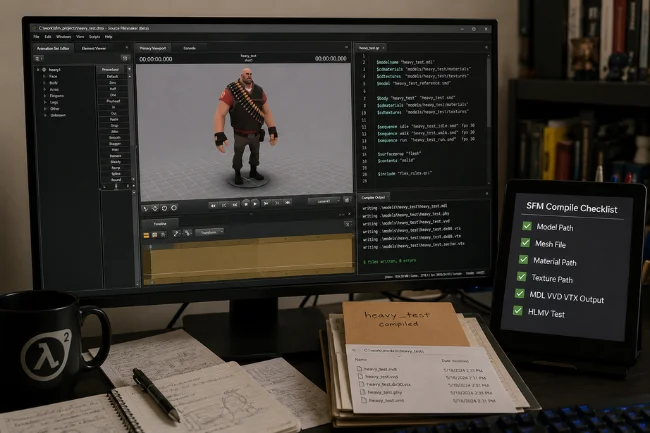
A separate path checklist
Every project should have a small checklist:
- Does
$modelnamepoint to the intended output folder? - Does
$bodypoint to the correct mesh file? - Does
$cdmaterialsmatch the real material folder? - Do VMT files point to the correct VTF texture path?
- Did the compiled MDL, VVD, and VTX files appear?
- Did the model open in HLMV before testing in SFM?
This checklist catches more issues than most long tutorials.
A real compile log explanation
Beginners often see a compile log and panic. The log is not there to scare you. It tells you exactly where the pipeline broke.
Look for missing file warnings, invalid command messages, material path errors, and collision warnings. Do not only read the final line. The useful clue is often 20 lines above the failure.
Different advice for props and characters
A prop compile and a character compile are not the same job. If a tutorial treats them as identical, it is oversimplifying the topic.
Props are mostly about mesh, texture, scale, and collision.
Characters are about skeletons, weights, sequences, materials, and sometimes facial flexes.
A first-test model
I like using a plain cube or crate as the first test model. It is not exciting, but it removes distractions. If a basic cube compiles and loads correctly, your tool setup works. If a complex character fails later, you know the problem is probably the model setup, not the compiler installation.
That one habit saves a lot of wasted troubleshooting.
Best Practices for Cleaner SFM Compile Results
Keep filenames simple. Avoid spaces, unusual symbols, and inconsistent capitalization.
Keep your material folder names predictable. A path like models/custom_character/body is easier to debug than a messy folder copied from five different projects.
Use a simple test model first. If your first compile is a complex character with 70 bones and multiple materials, you are making the learning process harder than it needs to be.
Preview in HLMV before SFM. If it fails there, fix it before opening Source Filmmaker.
Keep a backup of every working QC file. Once you have a clean prop QC and character QC, reuse them as templates.
Change one thing at a time. If you edit the mesh, material path, QC file, and export settings all at once, you will not know which change caused the problem.
Is SFM Compile Still Worth Learning?
Yes, if you want control over custom Source Filmmaker models.
Many users only download ready-made models, and that is fine. But the moment you want to fix textures, convert a model, add a prop, adjust collision, or prepare a custom character, you need to understand the compile process.
SFM Compile is not glamorous. It is technical, picky, and sometimes annoying. But it gives you control.
Once you understand QC files, material paths, model output, and basic troubleshooting, SFM stops feeling like a black box. You can look at an error and know where to check first.
Final Thoughts
SFM Compile is the practical process of preparing and converting model assets so Source Filmmaker can load them correctly. The heart of the process is simple: clean source files, correct QC instructions, accurate material paths, and proper testing.
If you are just starting, do not begin with the hardest model you can find. Compile a simple prop first, test it in HLMV, then move to animated objects and characters. Build one reliable workflow, save your working QC files, and treat every error as a path, syntax, or file-structure problem until proven otherwise.
Your next step should be simple: create a small test model, write a clean QC file, compile it with Crowbar, and confirm it opens correctly before touching a complex character.
FAQs About SFM Compile
What is SFM Compile used for?
SFM Compile is used to convert model files and instructions into Source Filmmaker-readable assets, usually including MDL and related compiled files.
Do I need Crowbar for SFM Compile?
No, but Crowbar makes compiling easier because it gives you a user-friendly interface for tools that would otherwise require command-line work.
Why are my SFM model textures purple?
Purple checkerboard textures usually mean Source Filmmaker cannot find the correct VMT or VTF files, or the material path in the QC/VMT is wrong.
Can I compile FBX files directly for SFM?
Usually, no. FBX files normally need to be converted or exported into Source-friendly formats such as SMD or DMX before compiling.
What is the most common SFM Compile mistake?
The most common mistake is incorrect file paths, especially wrong $cdmaterials paths or VMT files pointing to texture locations that do not exist.

Marcus Vance is a digital journalist and trends analyst with over 7 years of experience covering technology, business, and lifestyle. At wellhealthorganic1.com, he delivers research-driven guides on emerging trends, productivity tools, and practical life hacks to help readers simplify routines and make informed decisions.